1Open the invoice form
From the sidebar click Sales → + New sale. Pick the vehicle, the buyer (an existing contact or new), and the sale price.
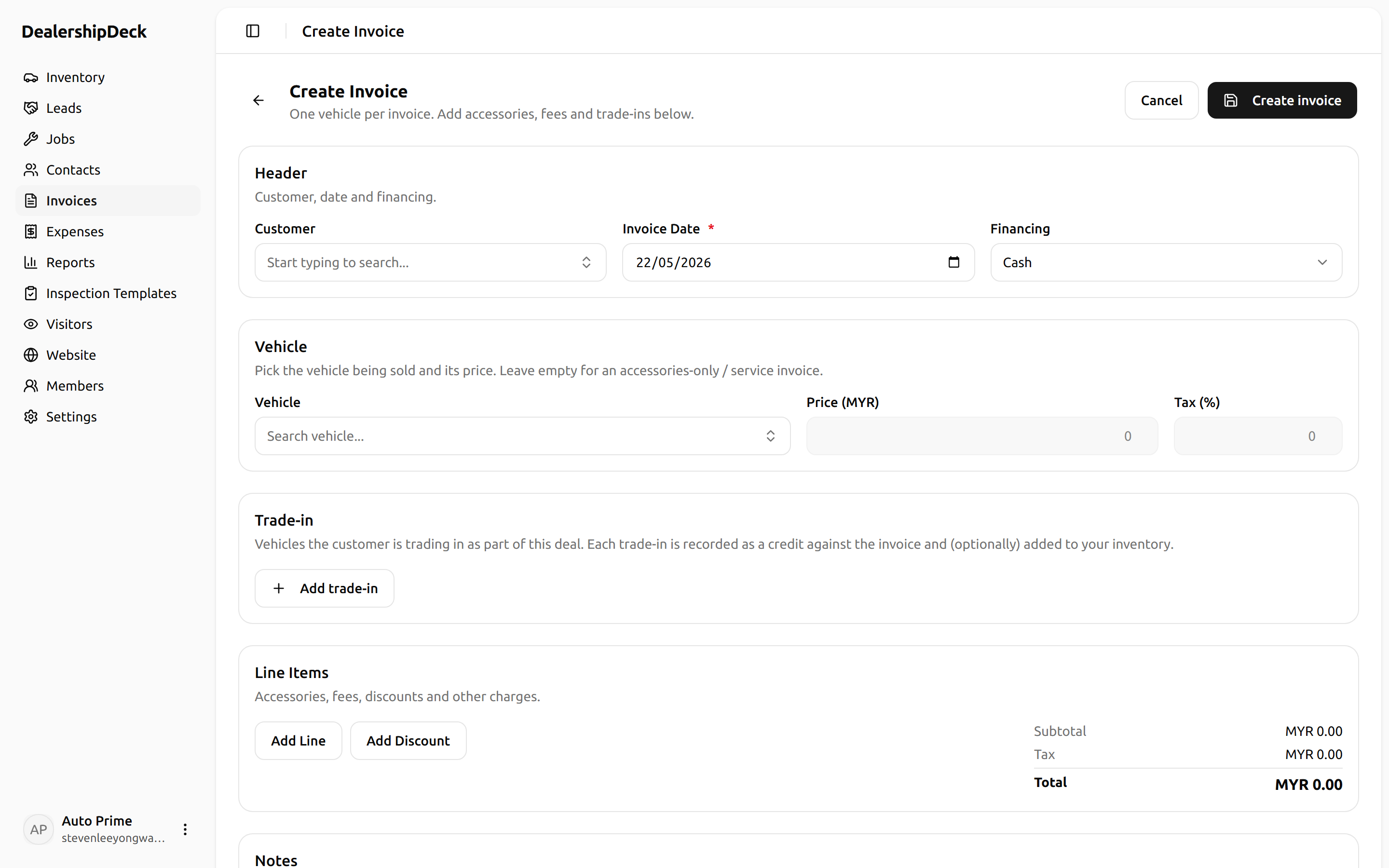
public/help/record-sale-1.png — The new-sale form with the vehicle dropdown open showing READY_FOR_SALE inventory.2Pick financing
Cash — single payment, full amount due immediately. Hire purchase — set deposit, term, interest rate; the platform generates the monthly schedule automatically.
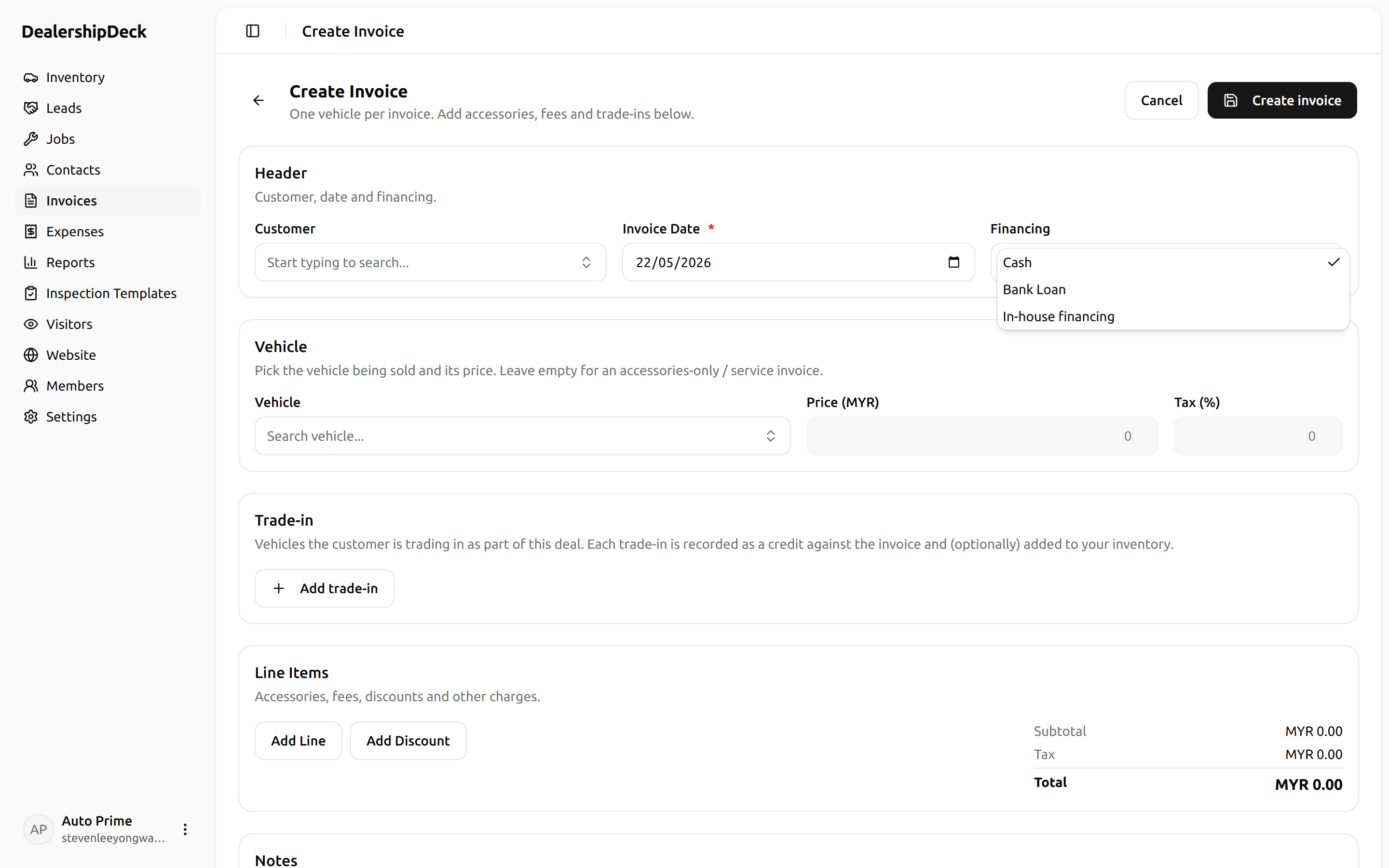
public/help/record-sale-2.png — The financing section with Hire Purchase selected, showing deposit + term + interest fields and the auto-generated payment schedule preview.3Save the invoice
Saving moves the vehicle status to SOLD and the invoice goes into UNPAID until the first payment lands.
4Record a payment
Open the invoice from /invoices/[id] and click + Record payment. Enter the amount and date. The outstanding balance updates immediately, and the schedule marks the matching installment paid.
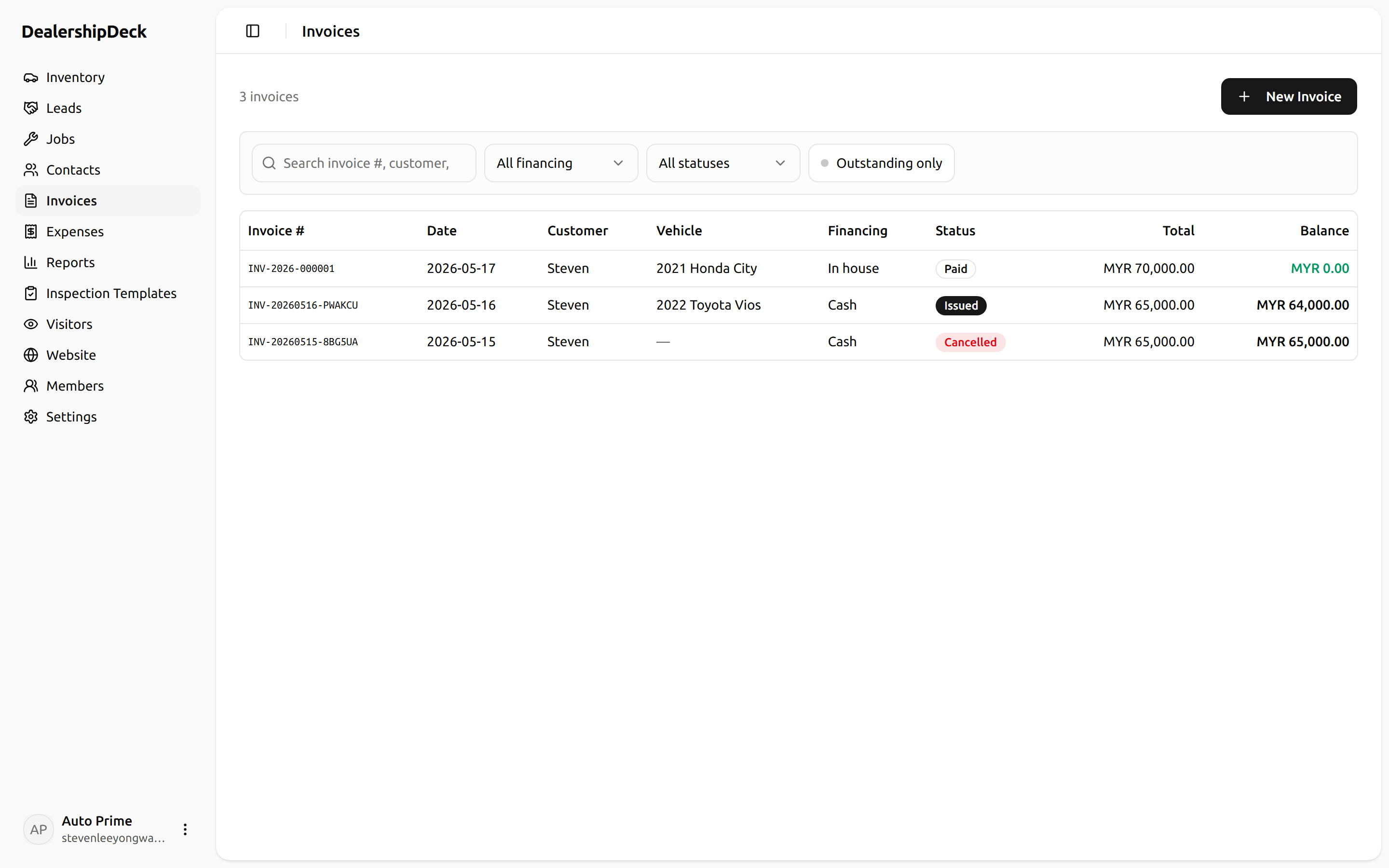
public/help/record-sale-4.png — An invoice detail page with the Record-payment dialog open showing amount + date fields.