1Start the report
On a vehicle detail page, open the Condition Reports tab and click + New report. Pick the template (default template is pre-selected) and inspector, then go.
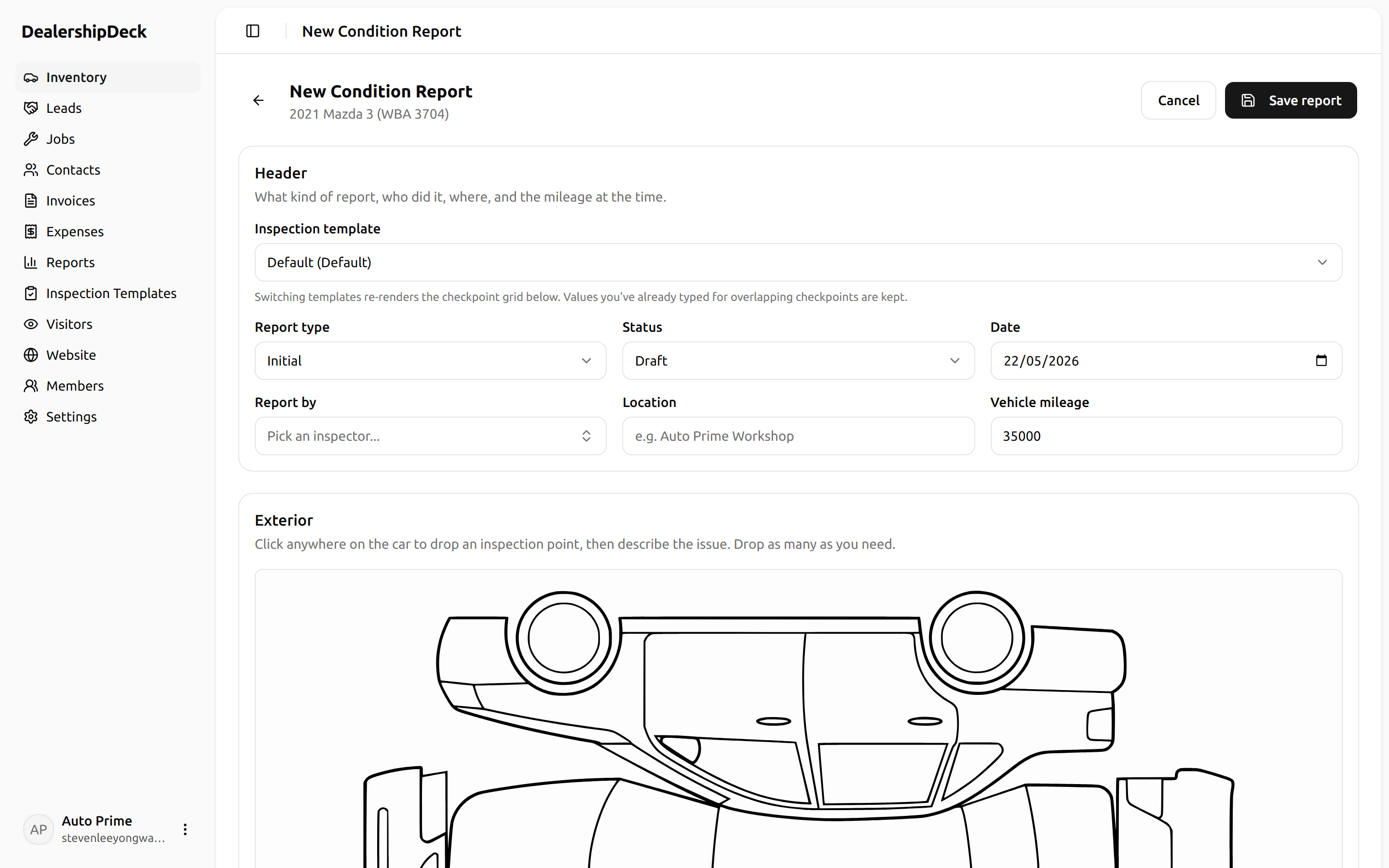
public/help/condition-report-1.png — The new-condition-report form with the template picker open showing 2-3 templates listed.2Mark dents on the diagram
Click anywhere on the car silhouette to drop a numbered marker. Each marker gets a description + a severity (Minor / Major). Click an existing marker to edit or delete it. Switch between Exterior and Interior with the toggle above the diagram.
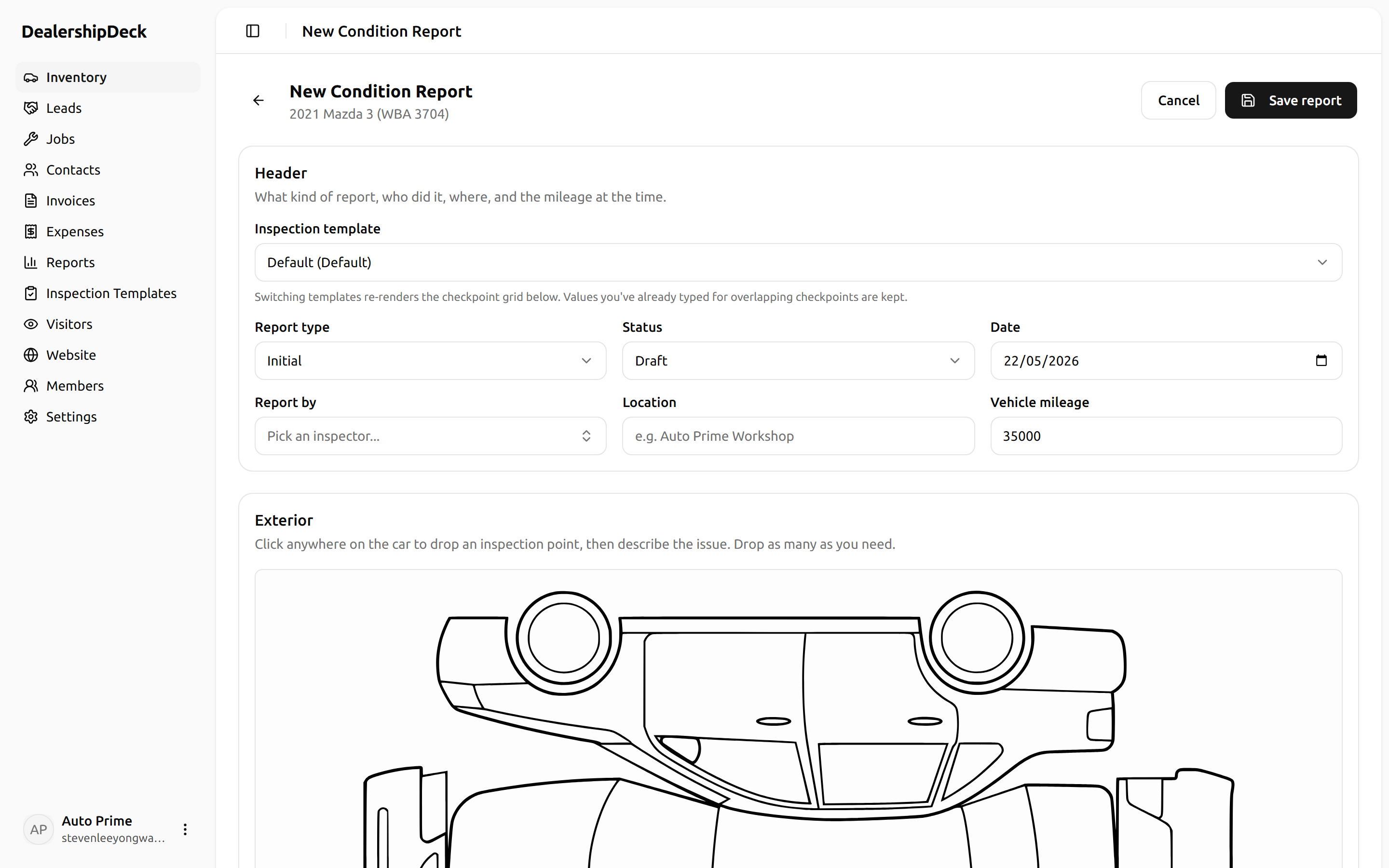
public/help/condition-report-2.png — The dent-map editor with the exterior silhouette and 3-4 numbered red dots placed; the side panel shows their descriptions.3Tick the checkpoints
Walk through each section, marking Satisfactory, Replaced, Unsatisfactory, or Not Applicable. Checkbox-style items just tick.
4Attach photos
Use the photo upload at the bottom. Photos attached here are linked to this report only— they don't pollute the public listing gallery.
Note. Reports save as you go (drafts). Set status to FINALonly when you're done — printable PDFs from a final report are what customers see.