1Open the new-vehicle form
From the sidebar click Vehicles, then the + New vehicle button at the top right of the list.
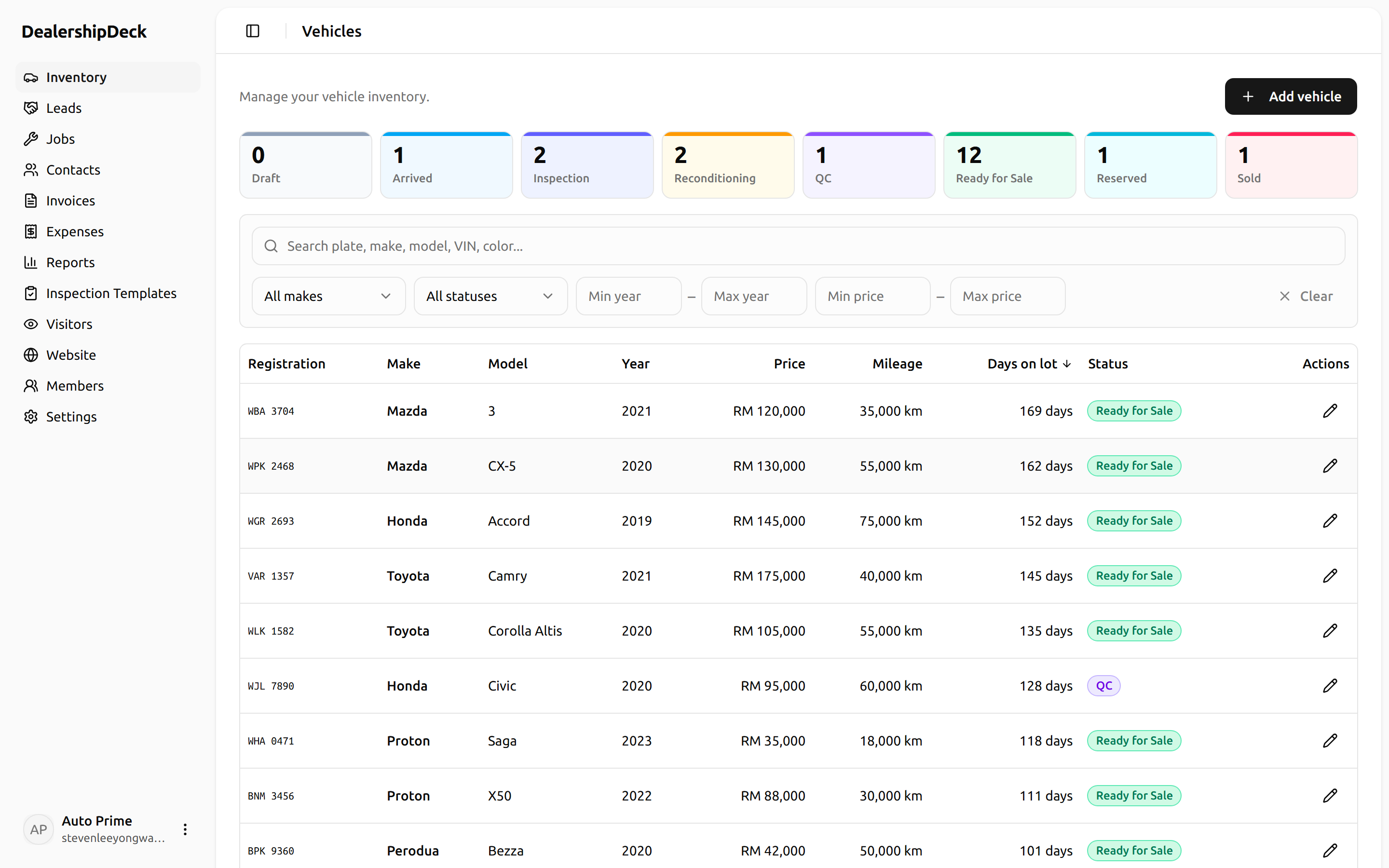
public/help/add-vehicle-1.png — The Vehicles list page with the '+ New vehicle' button in the top right highlighted.2Fill in the basics
Make, model, year, mileage, and price are required. Plate number, VIN, colour, body type, transmission, and fuel are optional but recommended — the public listing card uses them as filter facets, so customers can search by body type or fuel.
Tip. Pick a body type even if you're unsure. The condition-report dent map uses it to draw the right silhouette (saloon vs SUV vs pickup) in print.
3Set the status
New vehicles default to DRAFT. Move through ARRIVED → INSPECTION → RECONDITIONING → QC → READY_FOR_SALE as work progresses, then RESERVED or SOLD when a deal closes.
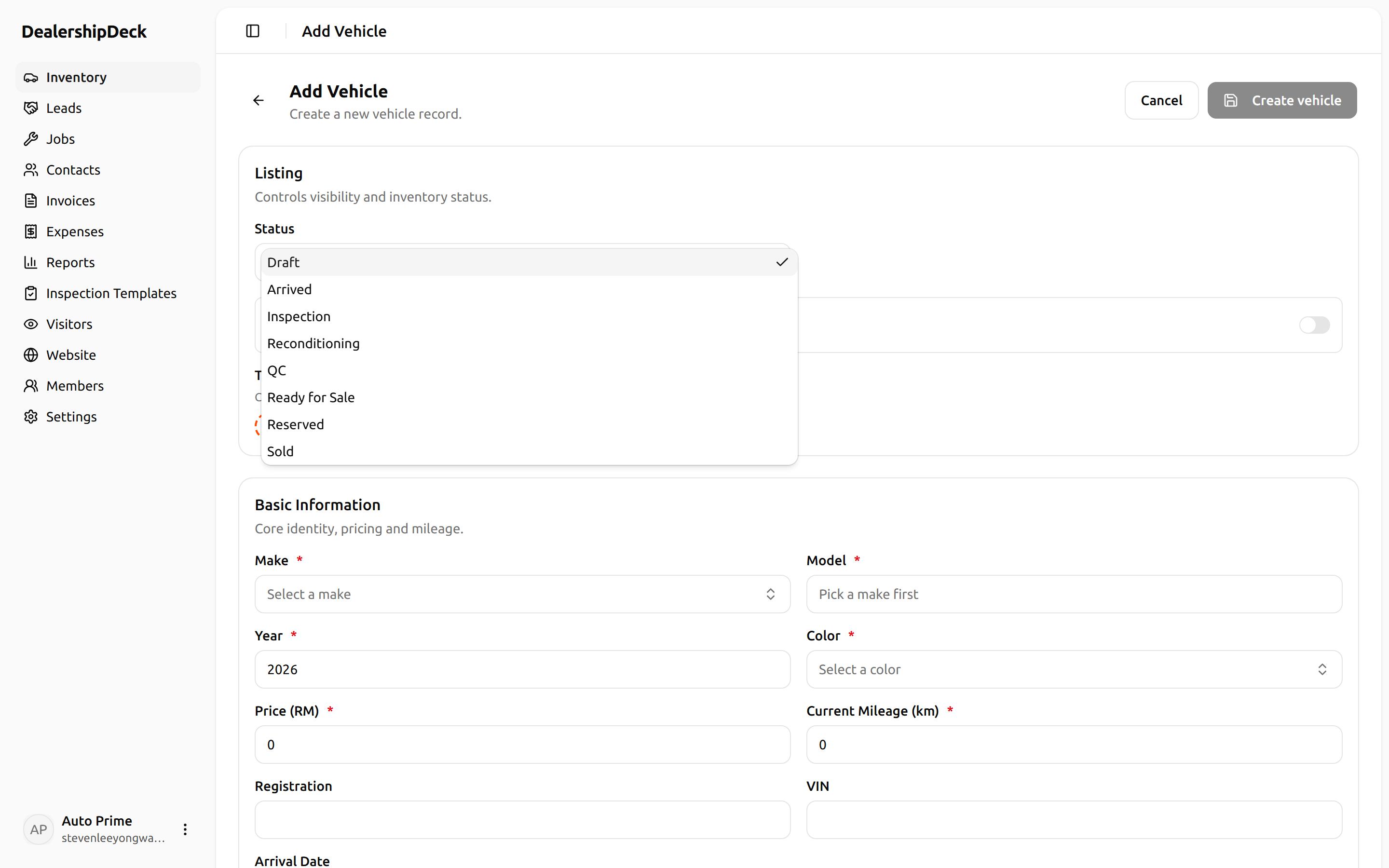
public/help/add-vehicle-3.png — The vehicle form's Status dropdown open, showing the full pipeline.4Save
Click Saveat the bottom. You land on the vehicle's detail page where you can add images, documents, condition reports, and jobs.